
Hello Sitecore Community,
Sitecore CLI is important tool to syncing item from one Sitecore entity to another Sitecore entity . It is helpful when you want to send your items to upper environment With same item ID and data .
For more information about CLI you can read here .
For syncing item you can have 2 ways
- CLI CMD — You can write command to sync your items . There are many commands provided by Sitecore for syncing items . you can have look into this command here.
- Sitecore for visual studio — This is graphic interface for CLI . You can push or pull or update item from here . You can download Sitecore for visual studio from here .
Once you configure any of the above method you can able to sync items in your local system to upper environment .
While syncing one of items i have encountered a issue .
So before going deep into issue i will explain how structure works for serialization .
for ex. you have created a template in your system

Whey you sync this specific item in your local it will create a folder structure same as your item path == > where your project located +”serialization\templates\Talent\project\Site1\Category 1\Information about product”
Let’s look into issue which i encountered .
When i was syncing an item it was not creating same structure as above but it was creating same random number of folder and then adding item in them .
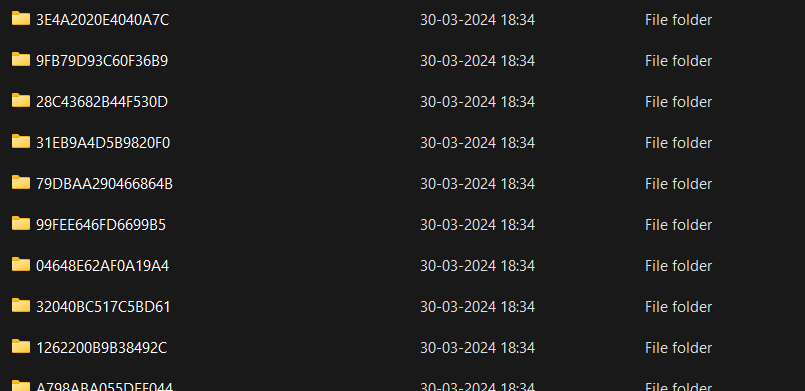
It was very confusing because some item were creating correct some were having issue and creating like them.
Solution
While searching through solution i have found issue related to this for max relative path . As while syncing it is creating a folder structure and path and due to path length constrain it was not able to create a relative path as limit was exceeding . So it was creating some random folder and adding item into that.
So as we have looked into issue and solution lets see how we resolve this .
- go to your project folder and open “sitecore.json” file . This file is created when you were configuring your CLI in your local
- In this file you will find “defaultMaxRelativeItemPathLength” variable where you will define value for relative path . By default value of this variable is 120 .
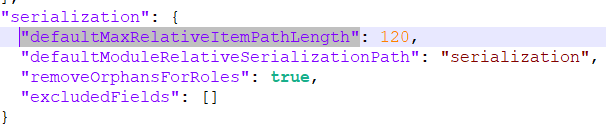
You can update value of this variable according to your item file length . you can calculate your file length by the maximum relative item path length = the file system maximum path and file name length .
Now you can delete those folder and resync those items and it will create folder structure same as your item structure and in Sitecore .
By mastering these techniques and understanding how Sitecore CLI interprets file paths, developers can streamline their workflows and avoid common pitfalls associated with path handling, ultimately leading to improved efficiency and smoother development experiences.
Thank you for joining us on this exploration of Sitecore CLI with Visual Studio. Keep coding, keep debugging, and keep pushing the boundaries of what’s possible with Sitecore development!
Happy Coding😊
Reference:






 Tech Nerd
Leave a comment